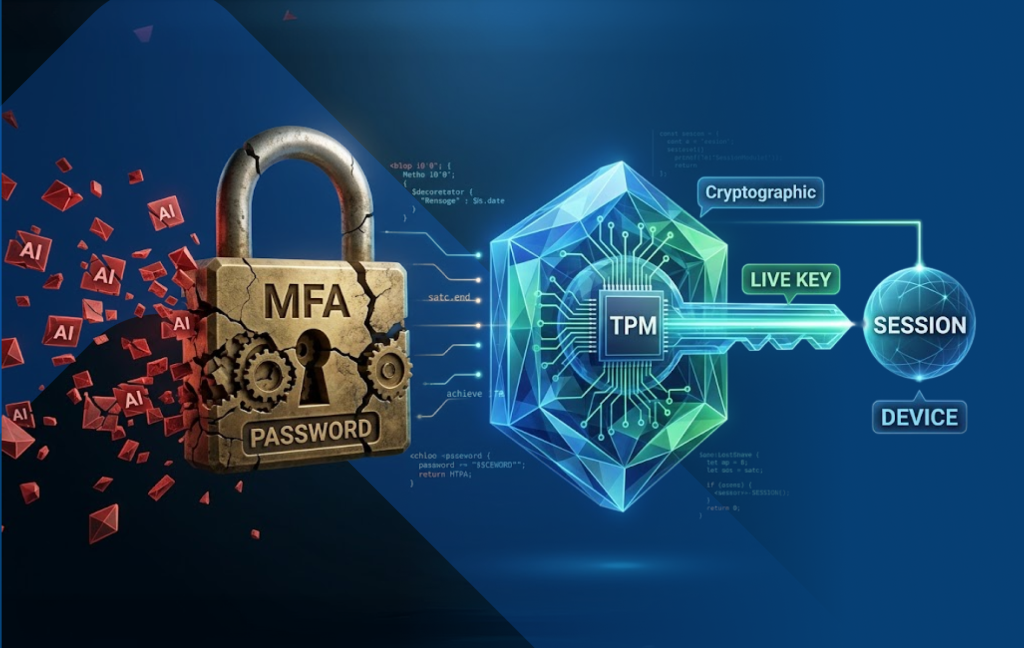
With the introduction of MagicEndpoint enterprise support for SSH, enterprise users now get seamless “no user action” access to SSH servers. Instead of password our solution uses SSH with keys whereby the private key is hardware protected and is never shared. This is extremely secure; much more secure than most other key-based SSH solutions where the keys are protected with just software.
Previously I wrote about our free standalone version of SSH key manager for Windows client machines that leverages FIDO SSH keys: https://winmagic.com/en/freeware-released-securing-ssh-access-with-magicendpoints-fido-tpm-innovation/
To recap, once the user authenticates locally on the Windows device the SSH FIDO keys become “accessible”, and the user seamlessly logs into their SSH server. WinMagic’s MagicEndpoint standalone client offers an intuitive and user-friendly way to manage SSH keys securely with TPM and FIDO.
Here are some highlights of the standalone version.
Standalone Features:
- Unlike traditional solutions, replaces passwords with hardware-rooted SSH keys whereby the private key is never shared—offering a level of security far beyond software-based SSH key managers, all with no user action required: no passwords, no phones, no tokens.
- Automatic creation of a default FIDO SSH key bound to the TPM.
- One-click creation of additional keys.
- User-friendly key management UI.
- Key backup functionality. (keys can be backed up and restored to only your device, non-shareable, and saved securely)
- Security Advantages: If the user logs out of MagicEndpoint (or of course the Windows account), the SSH key becomes inaccessible
- Multiple users on the same device are supported.
- Supports PuTTY-CAC and Microsoft’s native OpenSSH command-line tools (“ssh”, “scp”, “sftp”, and “SSH tunnels”).
This solution not only simplifies the management and security of SSH keys but also enhances usability and compatibility across common SSH tools.
Enterprise Features:
We now have an enterprise version that builds on the standalone version. The standalone addresses the issues of usability and security on the client side, while the enterprise version adds central control and visibility. The best practice for most enterprises is that the user has no standing access to the SSH server. Access is controlled dynamically from the MagicEndpoint server. Here are the capabilities that are required for management and compliance in an enterprise class solution for SSH authentication and how MagicEndpoint provides them:
- Key Lifecycle Management requires generation, storage, rotation, archival, and deletion of cryptographic keys.
- With MagicEndpoint the keys are generated on the endpoint’s TPM (Trusted Platform Module).
- These keys are stored encrypted on the PC and when needed sent to the computer’s TPM to be used in the SSH FIDO authentication. The key is bound to the user’s Windows device via the TPM, and the key is never in plain text (i.e. never exposed) outside the TPM. The private key is very secure as most TPMs in enterprise class PCs are FIPS 140 certified.
- There is a unique key for each user / device / SSH server for granular control.
- Key rotation will be supported on both a manual and automatic basis for the unlikely event that the TPM is compromised. More frequent key rotation is advisable when keys are not protected by hardware.
- Archival of keys is done on the MagicEndpoint server side but the private key always remains encrypted and never exposed outside of the TPM.
- Deletion of the private key occurs when the TPM is reset but more importantly a user’s access to a SSH server is controlled centrally and can be withdrawn at any time. (For example, TPM should reset when repurposing computer.)
- Audit Logging is required for both security and compliance. NIST provides guidance in Security of Interactive and Automated Access Management Using Secure Shell (SSH) :
“AU-3, CONTENT OF AUDIT RECORDS,
Enhanced auditing of SSH should be enabled to track the usage of keys and provide an audit trail of which source user (and client) is using keys to connect to the destination user”
MagicEndpoint server keeps detailed audit logs including:
-
- What type of event occurred (e.g. authentication request)
- When the event occurred (i.e. time stamped)
- Where the event occurred (e.g. geolocation of SHH client)
- Source of the event (e.g. SSH Server name & IP address);
- Outcome of the event (e.g. Authentication success or failure with reason)
- Identity of any individuals, subjects, or objects/entities associated with the event. (e.g. user/ device / SSH Server)
- RBAC (role-based access control) must be enforced to ensure only authorized users and applications can access SSH Servers.
- MagicEndpoint uses groups as a central mechanism to enforce RBAC by associating users with the specific SSH Server through group membership.
- Groups are created and managed via the MagicEndpoint console. These groups can be imported from and synchronized with external identity providers like Active Directory or Azure AD.
Within the MagicEndpoint console, each group has a “SSH Server” tab. Admins can assign one or more SSH Server definitions to a group. This links the group to specific applications or services that users in the group are allowed to access. Users inherit access permissions based on the groups they belong to. Since users can be in multiple groups, they can gain access to multiple services without needing individual configuration. This makes access control scalable and easier to manage. Adding or removing a user from a group instantly updates their access rights. This supports the principle of least privilege and simplifies onboarding/offboarding processes. The system checks group membership at the time of access. Only users in groups associated with a given SSH Server are granted access to that service. This approach allows organizations to centralize access control, reduce administrative overhead, and ensure consistent enforcement of security policies.
- Monitoring and Alerts: Real-time monitoring of key SSH server access and generation of alerts for anomalies, unauthorized access attempts, or policy violations are required:
- MagicEndpoint, provides visibility to all users given access to a given SSH server as well as visibility to all end point devices used for access to SSH servers. By viewing the groups, it is easy to see what user/endpoint device has access to each SSH server.
- If there is a failed access attempt to individual servers then alerts can be configured to be triggered beyond certain thresholds.
- Support configurable permissions and access conditions for SSH keys
MagicEndpoint supports configurable permissions and access conditions that control how and when SSH keys can be used by the SSH Server for example Source IP Restrictions. Source IP restrictions in SSH are a way to limit the use of a specific SSH key to connections originating from certain IP addresses. This adds an extra layer of security by ensuring that even if someone obtains the private key, they can only use it from an approved location.
Metadata You Can Embed in the Output
|
Option |
Purpose |
|
from=”IP/CIDR” |
Restrict key usage to specific IPs or networks |
|
command=”…” |
Force execution of a specific command (e.g., a restricted shell) |
|
no-pty |
Prevents allocation of a pseudo-terminal (disables interactive shell) |
|
no-port-forwarding |
Disables TCP port forwarding |
|
no-agent-forwarding |
Disables SSH agent forwarding |
|
no-X11-forwarding |
Disables X11 forwarding |
|
environment=”VAR=VAL” |
Sets environment variables for the session |
How it works
Here is a step-by-step description of how a user gets access to a SSH Server from a new device. (The SSH Server is already known to the MagicEndpoint server in this example.)
- User generates new SSH keys on their Windows TPM and names the key appropriately, say “SSH Server A”.
- MagicEndpoint client registers the public and encrypted private SSH keys with the MagicEndpoint Server
- MagicEndpoint Admin adds the user to the group “SSH Server A” on MagicEndpoint server.
- User connects to SSH server. (An account for their username was opened previously by the SSH Server Admin)
- As a result of the SSH Server’s execution of AuthorizedKeysCommand the public key for that user is requested from the MagicEndpoint server
- The MagicEndpoint server receives the request and verifies that the user is indeed in the “SSH Server A”
- The MagicEndpoint server checks if any additional policies apply
For example, is the user connecting from an Allowed country? (see https://winmagic.com/en/enhancing-authentication-security-with-geolocation/ ) - The MagicEndpoint server uses its persistent connection with the client SSH machine to verify security posture and intent
- The public key for the user on the specific allowed Windows device for SSH Server A is provided if all of the above pass
- Using this public key the SSH Server performs a strong cryptographic authentication of the user on the specific Windows device by issuing a challenge that can only be fulfilled by with the TPM protected private key on that device (The SSH Server can also apply the metadata policies)
- Access to the SSH server is granted.

Click here for a short video: https://youtu.be/UKNJPFJCHm4
To summarize, with the introduction of MagicEndpoint enterprise support for SSH, users now get the same seamless “no user action” to SSH servers as they have to federated apps and RDP (Remote Desktop). RDP is an alternative to SSH for remote access when a graphical interface to a remote Windows machine is needed vs SSH which is a better fit for secure, efficient command-line access, especially for Linux/Unix systems or automation. SSH can now be used to login to Windows machines command line to execute PowerShell too. Pick whichever method best meets your needs and MagicEndpoint supports it.
Get started today:
For more details and to download a free standalone version to give it a try, please see below:
- Free download here: https://github.com/WinMagic/MagicEndpoint-FidoEazy
- Video on Securing SSH Access with No User Action: https://youtu.be/_05ZIO6kS2Q